Server Telemetry
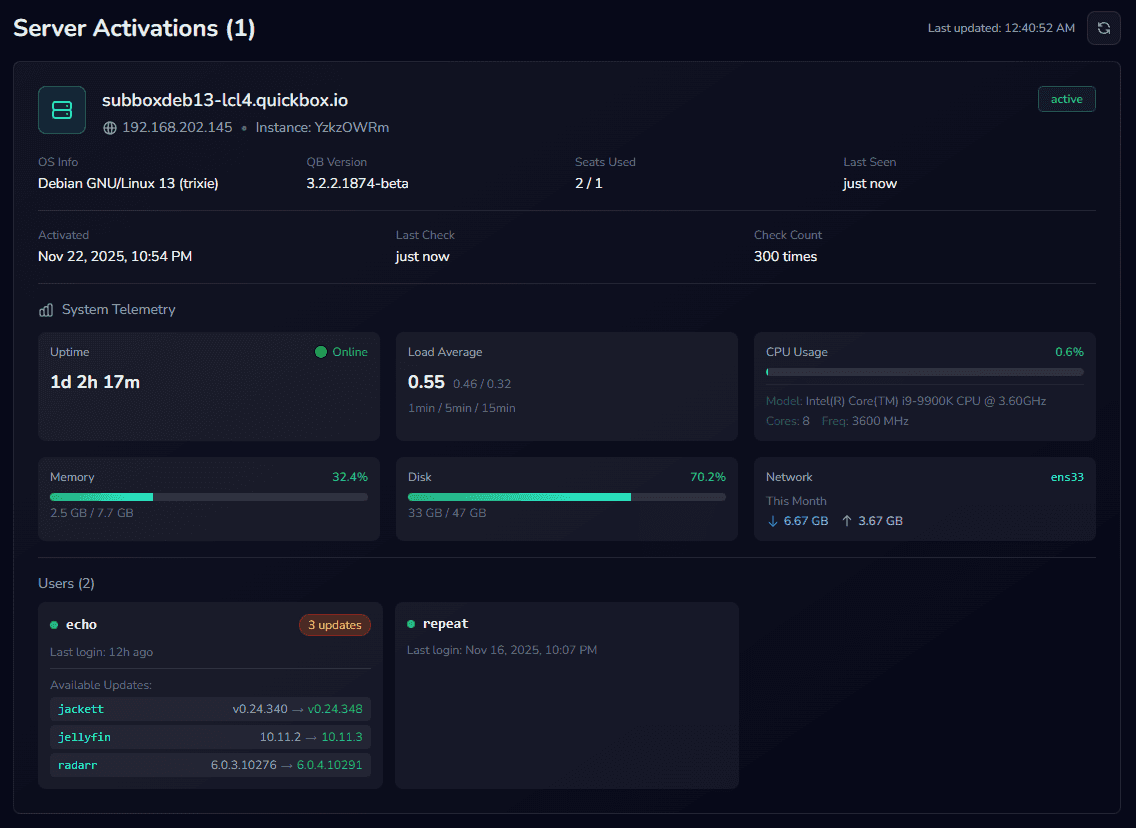
QuickBox Pro collects basic system metrics from your server to provide real-time monitoring in your dashboard. This page explains what data is collected, why it’s useful, and how to opt out.
What is Telemetry?
Telemetry is the automatic collection and transmission of system metrics from your QuickBox Pro server to your dashboard. This allows you to monitor your server’s health, resource usage, and user activity from anywhere.
Every 5 minutes, QuickBox Pro sends metrics via the heartbeat system to keep your dashboard up to date.
This page covers the telemetry your server sends to your QuickBox account dashboard. It is separate from the System Dashboard’s Telemetry History Store, which keeps a durable local history of your metrics entirely on the server and never transmits anything off the machine.
What Data is Collected
System Metrics
- CPU - Processor name, core count, frequency, and usage percentage
- Memory - Total RAM, used RAM, and free RAM
- Disk Space - Total disk space, used space, and free space
- Network - Interface name, monthly RX/TX totals, and current RX/TX speeds
- Speed Test - Your server’s latest network speed test result: download and upload throughput (Mbps), ping and jitter (ms), the speed test tool used, and when the test ran. Sent only if a speed test has been run on the server.
- Uptime - How long the server has been running
- Load Average - 1-minute, 5-minute, and 15-minute load averages
Server Information
- Hostname - Your server’s hostname
- IP Address - Server’s public IP address
- OS Info - Operating system and version
- Server Version - QuickBox Pro version number
User Activity
- User List - Usernames and email addresses of QuickBox users
- Last Login - When each user last logged in
- Active Status - Whether each user account is active
- Installed Applications - List of installed applications with current and available versions
What is NOT Collected
QuickBox Pro only collects what’s necessary for system monitoring. Your personal data and content remain completely private.
We do not collect:
- File names, directories, or file contents
- Configuration files or settings
- Passwords or authentication tokens
- Personal media libraries or torrents
- Browsing history or activity logs
- Unique machine IDs or hardware fingerprints
- Your media consumption habits
Why is Telemetry Useful?
Real-time Monitoring - Check your server’s status from your dashboard anytime, anywhere.
Resource Planning - Track CPU, RAM, and disk usage trends over time to plan upgrades.
Update Notifications - See which applications have updates available at a glance.
User Management - Monitor user activity and last login times.
Troubleshooting - Diagnose performance issues remotely without SSH access.
Capacity Planning - Know when to upgrade before running out of resources.
Where to See Your Telemetry
- Sign in at v3.quickbox.io. The new dashboard is separate from the legacy quickbox.io portal.
- Open
Dashboard → Licenses. The Licenses table lists every key on your account, shows online servers, and has a search bar so you can find a specific hostname fast. - Use the actions menu (the
•••button) → “View Telemetry & Details”. This routes you to/dashboard/licenses/<licenseId>where live metrics, API keys, and seat usage for that license live. You can also tap any license card on mobile to reveal the same action. - Scroll to “Server Activations”. Each server activation card is collapsible—click it to expand the telemetry drawer, review connection history, and browse per-user update alerts. A refresh icon in the header forces a new heartbeat pull, and the page auto-refreshes every 30 seconds while you keep it open.
| Entry point | What you’ll find |
|---|---|
Licenses table → View Telemetry & Details | License summary, activation counts, seat pool, quick links to purchase seats. |
| Server Activations list (within a license) | Online/offline badge, QuickBox version, seats used, latest heartbeat, and the expand/collapse control for full telemetry. |
Activation drawer → View History | Connection timeline with selectable entries you can clear, plus buttons to export or purge spans. |
| Associated API Keys | Per-key usage counts, last-used IP, and the inherited status from the parent license so you know which keys are still valid. |
| Seat Add-ons | Purchase history for extra seats so you can track where telemetry/seat spikes originate. |
Per-server telemetry drawer
When you expand a server under Server Activations you’ll see:
- Status & uptime guardrail – the badge shows
Online,Awaiting heartbeat, orOffline, and the uptime counter pauses automatically if the heartbeat stops. - Live resource tiles – CPU, load averages, RAM, disk, and interface-level RX/TX usage update in-place and will gray out if the server is offline.
- User & app insights – the Active Users grid lists each QuickBox user, their last login, and how many application updates are pending for their installs.
- Connection history controls – tap View History to open a mini log of online/offline spans. You can multi-select entries, clear them, or wipe the full history while the current session stays intact.
API key and account-level telemetry
Below the activations you’ll find Associated API Keys. This section surfaces:
- Status inheritance – if the license is suspended or expired, the badges here instantly flip so you can see why a key stopped working.
- Usage metadata – last used timestamp, originating IP, and total calls for each key, which helps correlate spikes you notice in the server telemetry above.
- Seat add-on context – any extra seat packs purchased for burst workloads appear directly under the keys list so you can match billing events to telemetry increases.
Add the Licenses page to your dashboard favorites (star icon in the global nav). From there you’re always two clicks away from per-server telemetry, API key diagnostics, and connection history without digging through the rest of the site.
How Does It Work?
- Cron Job - A cron job runs every 5 minutes (
*/5 * * * *) - Data Collection - QuickBox Pro gathers system metrics
- API Request - Data is sent to
/api/v1/license/heartbeatvia HTTPS - Dashboard Display - Metrics appear in your license dashboard in real-time
Security & Privacy
HTTPS Encryption
All data is transmitted over HTTPS/TLS with industry-standard encryption
API Key Authentication
Only authenticated requests with valid API keys are accepted
Your Server Only
Data is associated with your license only, completely isolated from other users
No Third Parties
Data is not shared with third parties under any circumstances
How to Opt Out
Telemetry is completely optional. You can disable it at any time without affecting your license.
To disable telemetry:
qb manage telemetry -o offTo re-enable telemetry:
qb manage telemetry -o onDisabling telemetry will prevent real-time metrics from appearing in your dashboard. Your license will remain active, but you won’t see system stats, user activity, or update notifications.
Technical Implementation
Here’s how telemetry works under the hood for those interested in the technical details.
Cron Job
The heartbeat is triggered by a cron job that runs every 5 minutes:
*/5 * * * * root /usr/local/bin/qb manage api -o heartbeat >/dev/null 2>&1API Endpoint
Data is sent to:
POST /api/v1/license/heartbeatRequest Format
{
  "license_key": "your-license-key",
  "hostname": "server.example.com",
  "os_info": "Ubuntu 22.04 LTS",
  "server_version": "3.0.1",
  "cpu_name": "Intel Xeon E5-2680 v4",
  "cpu_cores": 28,
  "cpu_frequency": "2.40 GHz",
  "cpu_usage": 15.3,
  "memory_total": 67108864,
  "memory_used": 45088768,
  "memory_free": 22020096,
  "disk_total": 1073741824,
  "disk_used": 536870912,
  "disk_free": 536870912,
  "uptime": 1234567,
  "load_average_1": 1.2,
  "load_average_5": 1.5,
  "load_average_15": 1.8,
  "network_interface": "eth0",
  "network_rx_month": 1099511627776,
  "network_tx_month": 549755813888,
  "network_rx_speed": 125000000,
  "network_tx_speed": 125000000,
  "network_test_download_mbps": 942.7,
  "network_test_upload_mbps": 918.3,
  "network_test_ping_ms": 4.2,
  "network_test_jitter_ms": 0.6,
  "network_test_engine": "librespeed-cli",
  "network_test_at": "2025-11-23T09:15:00Z",
  "users": [
    {
      "username": "alice",
      "email": "alice@example.com",
      "is_active": true,
      "last_login": "2025-11-23T10:30:00Z",
      "software_updates": {
        "radarr": { "current": "5.14.0.9383", "available": "5.15.1.9428" },
        "sonarr": { "current": "4.0.10.2544", "available": "4.0.11.2680" }
      },
      "software_updates_count": 2
    }
  ]
}
Frequently Asked Questions
qb manage telemetry -o off. This keeps the implementation simple and secure.Join the Community
Media server operators sharing configs, getting support, and shaping the future of QuickBox Pro.