Firewall Conflict Resolver
The Firewall Conflict Resolver is a layer on top of the Settings → Security → Firewall Rules tab that classifies every active firewall rule by provider, detects when QuickBox-managed rules are fighting third-party rules, and offers a guided resolution for each conflict — either a one-click action chain that uses the provider’s official CLI to stand the conflict down, or a one-click dismissal for advisory items that don’t need any change.
It exists to solve a class of problem that, until now, looked like a generic “VPN doesn’t work” symptom — but actually traced back to two firewall rule sets quietly cancelling each other out at the kernel level.
The Firewall Conflict Resolver lives inside Security Settings and follows the same permission gates: admin.settings.read to view conflicts, admin.settings.update to apply a resolution. Navigate to Settings → Security → Firewall Rules from the sidebar.
What it does
Classifies every rule
Each firewall rule is tagged with its provider (PIA, NordVPN, Docker, fail2ban, etc.), a role label, and a severity. Rules that previously showed as Unknown now report what created them
Detects conflicts
Correlates iptables rules with active interfaces, routing tables, WireGuard peers, and running services to find rule sets that are working against each other
Offers resolution chains
When a conflict involves dependent artifacts — a daemon, its chains, its policy routes, its DNS push — they are bundled into one chain you accept or reject as a unit
Applies safely
Every resolution must be previewed first, every apply takes an iptables snapshot, and lockout-risk changes prompt you to whitelist your current IP before proceeding
Why it matters
Modern Linux servers can end up running several firewall managers at once. QuickBox Pro manages its own chains, the Geo-Block system writes its own rules, fail2ban writes ban entries, Docker injects forward rules for containers, and a third-party VPN daemon may install a full kill-switch on top of all of that.
Each system on its own is correct. The trouble starts when two of them disagree about who owns the default route or who is allowed to reject outbound traffic.
A representative example surfaced from a beta tester recently:
- The user was running PIA’s official Linux daemon (
piavpn.service). - The user also had QuickBox-managed WireGuard up, using a PIA-issued peer config, and had used the VPN Control page to route qBittorrent through that WireGuard peer.
- PIA’s daemon installs a kill-switch chain (
piavpn.r.100.blockAll) that REJECTs anything the daemon doesn’t recognise. - That chain silently dropped QuickBox’s WireGuard underlay UDP traffic. The WireGuard peer never came up, the per-app routing namespace never had a working tunnel, and the dashboard simply reported the peer as “Inactive” with no error pointing at PIA.
Two correct systems, one broken outcome. The Firewall Conflict Resolver finds this exact class of conflict, names it in plain English, and offers to take down whichever side the user picks.
What you will see
The detected-conflicts list
When the resolver finds one or more conflicts, a Detected firewall conflicts list appears directly above the firewall rules viewer. Each row shows:
- A severity badge (Critical, Warning, or Info) with a matching icon.
- A one-line summary of what the conflict is.
- A small label for the conflict type (for example, “QuickBox WireGuard underlay blocked” or “Catch-all REJECT in third-party OUTPUT chain”).
- The number of firewall rules involved, and up to a few interface chips with a “+N more” overflow when many interfaces are touched.
- A right-side action — Open resolver for chains you can apply, or Open advisory for informational rows that only need acknowledgement.
Rows are sorted by severity (critical → warning → info) with a stable secondary sort, so the list does not shuffle when the page refreshes in the background. Clicking any row opens its resolution modal directly. If the resolver finds no conflicts, the list section is hidden entirely and the firewall rules viewer reads the same as before — just with the new origin labels.
A rule’s severity and the surrounding conflict’s severity can differ. A standalone third-party catch-all REJECT, for example, will tag the rule itself as Warning in the rules viewer (a default-REJECT in the OUTPUT chain is genuinely a footgun) while the conflict reads Info because nothing on the host is currently colliding with it. The conflict severity reflects “is something actively breaking right now”; the rule severity reflects “is this rule shape risky on its own”. Both are independently meaningful.
The resolution modal
The modal explains, in user-facing language, what the two sides of the conflict are and which one is winning. It then presents one or more resolution chains — each chain represents a coherent, dependency-aware change. You pick a chain.
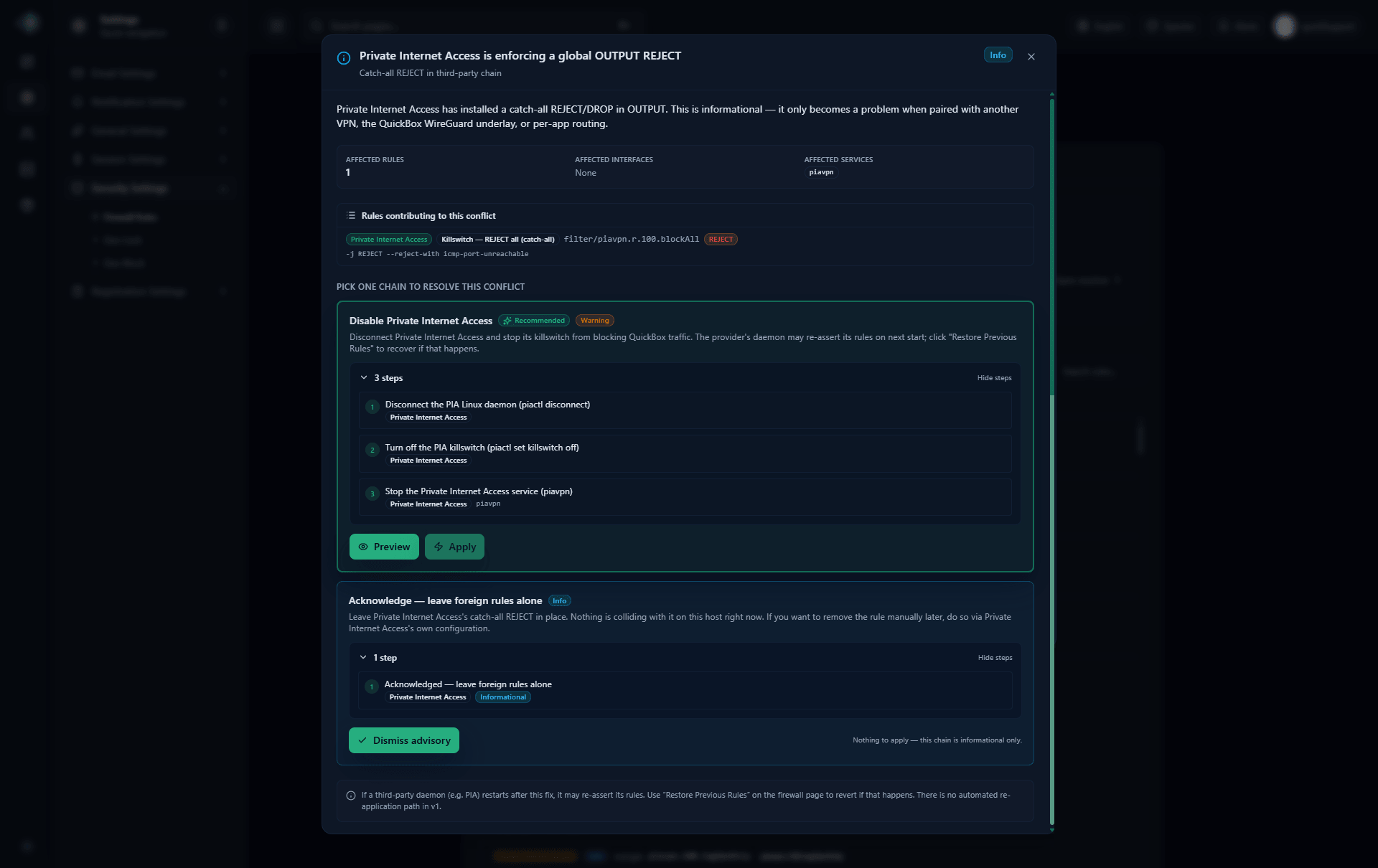
Picking a chain does not apply it. Apply is gated behind a dry-run preview.
A typical chain might combine:
- Stopping a third-party daemon (e.g.
piavpn.service). - Removing the chain that daemon installed.
- Removing the policy routes the daemon added.
- Removing the DNS push the daemon set.
You accept or decline each chain as a single unit. Each chain card lists its individual action steps before you preview, so you can read exactly what will run.
The Founder’s design intent is “pick a chain.” If a third-party daemon installs five rules plus a route plus a DNS push plus a service unit, those eight artifacts belong together. The modal treats them as one decision so you do not end up half-rolled-back.
Standalone advisory conflicts
Some conflicts are informational — a third-party provider has installed a catch-all OUTPUT REJECT, but nothing QuickBox manages is currently colliding with it. These rows appear with an Info severity badge plus an outline Advisory pill, and the right-side action reads Open advisory instead of Open resolver.
Opening an advisory shows the same modal, but with two options:
- A recommended action chain that disables the third-party provider. Where the provider ships an official CLI —
piactlfor PIA,nordvpnfor NordVPN,mullvadfor Mullvad,protonvpn-clifor Proton VPN,tailscalefor Tailscale,ivpnfor IVPN — the chain bundles the appropriate “disconnect / kill-switch off / stop service” steps in order, then stops the systemd unit so the provider can’t immediately reinstall its chain. For OpenVPN and other providers without a CLI surface, the chain falls back to stopping the service unit only. The chain runs through the same dry-run gate as any other resolution. - Acknowledge — leave foreign rules alone. Keep the third-party rule in place and dismiss the advisory.
Clicking Dismiss advisory on the modal hides the row from the conflicts list and persists the dismissal in your browser, so it stays hidden across page reloads. If the underlying conflict shape changes (the provider is reconfigured, the rule signature changes), the dismissal expires automatically and a fresh advisory will surface.
Dismissals are stored in your browser’s local storage. Another admin opening the page from a different browser, an incognito window, or after clearing site data will still see the advisory until they dismiss it themselves. Mutating chains (Warning or Critical severity) are never affected by dismissal — only advisory rows can be dismissed.
The dry-run requirement
Every resolution chain must be previewed before it can be applied. The Apply button is locked until the dry-run completes for the chain you have selected. This is intentional and cannot be bypassed.
The preview reports:
- Each individual action that would run (service stops, chain flushes, rule deletions, route removals).
- Any lockout warning — for example, “this change would remove the OUTPUT rule that lets your current IP reach the dashboard.”
- Any dependency warning — for example, “this change would also affect a different app’s routing namespace.”
If the preview surfaces a lockout warning, you have an inline opportunity to add your current IP to the dashboard whitelist before the change applies.
A successful preview returns a one-time apply token with roughly a 10-minute TTL. Apply must complete before the token expires; if you pause past it, the token is rejected and you re-run Preview to mint a fresh one. The chain card shows a countdown so you know how long is left.
Snapshot and restore
Every successful apply takes a snapshot of the full firewall state before the change runs, using iptables-save. Snapshots are kept on the server and managed automatically — no install-time setup required.
- Snapshots are written to
/opt/v4-dashboard/var/firewall-snapshots/. The dashboard service user owns the parent path. - The most recent 10 snapshots are retained. When the eleventh apply happens, the oldest snapshot is dropped.
- A Restore Previous Rules panel lists them with a timestamp and a one-line summary of what change they preceded.
- Restore is gated by the same dry-run flow as a resolution chain: click Preview on the row, review the diff, then Restore within the apply-token TTL.
- Restoring a snapshot replays the saved rules into the kernel. It is reversible — restoring also takes a fresh snapshot first.
This is the recovery path for the “I picked the wrong chain” or “the daemon re-asserted its rules” cases. You do not need shell access to recover.
Firewall snapshots only capture iptables rules. They do not capture routing tables, systemd unit state, or third-party daemon configuration. They are designed to recover from a bad apply, not to roll back a full system change.
The current-IP whitelist offer
If a resolution chain would close off the route between your browser and the dashboard, the dry-run preview surfaces an inline toggle:
Add my current IP to the dashboard whitelist before applying.
This mirrors the existing self-protection pattern on the Geo-Lock and Geo-Block tabs, where the system warns you before you block your own country.
The whitelist offer pins the IP your browser is currently presenting. If you connect from a VPN and that VPN later changes its exit IP — or you reconnect from a different location — the whitelisted IP is no longer yours, and you may be locked out of the dashboard. If you are administering the server through a VPN with rotating exits, prefer using a fixed VPN endpoint or whitelisting the upstream office network instead of a single transient address.
Limitations
The resolver is designed for the apply-and-confirm path. There are a few behaviours worth knowing about up front.
Third-party daemons can re-assert their rules
Some VPN providers and firewall daemons re-install their chains every time their service starts or restarts. The most prominent example today is the official PIA Linux daemon — running systemctl restart piavpn will re-create the piavpn.r.100.blockAll chain even if you removed it five seconds earlier through the resolver.
If this happens, the recovery path is Restore Previous Rules. There is no automated re-application of a resolution in the current release; you decide whether to live with the daemon’s chain or stop the daemon. The actionable advisory chain (which calls the provider’s CLI to disable its kill-switch and then stops the service unit) is the cleanest way to keep the daemon from reinstalling its chains.
Apply tokens expire
The one-time apply token returned by Preview is valid for roughly 10 minutes. If you wander away from the modal and come back later, click Preview again to mint a fresh token before clicking Apply.
Dismissals are browser-local
Dismissing an advisory hides it for the current browser only. Other admins (or the same admin in a different browser) will still see the row. If you want a server-side acknowledgement, the resolver does not currently provide one — surface to the QuickBox community if your team needs it.
Read carefully before applying
The resolver’s job is to bundle dependent artifacts into one chain. It is not a magic “fix everything” button. Read the chain summary in the modal before you apply — especially if the chain proposes stopping a third-party service. Stopping a daemon may have effects beyond the firewall (routing, DNS, app traffic) that the resolver names in the preview but cannot decide for you.
Supported providers
The resolver classifies and resolves conflicts for the following providers. Each is detected from a combination of chain naming, interface naming, comment markers, and (where relevant) the presence of a corresponding service unit, process, or active interface.
| Provider | Category | How it is detected |
|---|---|---|
QuickBox | Built-in | Rules emitted by QuickBox's own enforcement chain — manual blocks, ban-list entries, geo-policy rules |
WireGuard system | Built-in | Any active WireGuard interface on the host — both wg_* interfaces managed by QuickBox and foreign-named tunnels (e.g. nvpn_us10014, pia, provider-specific names) |
Fail2Ban | Built-in | The f2b-* chains created by the Fail2Ban service |
PIA (Private Internet Access) | VPN | Chain names beginning with piavpn.*, the piavpn.service unit, and PIA's policy-routing tables. Actionable via piactl |
NordVPN | VPN | NordVPN-specific chain names and the nordvpnd service unit. Actionable via nordvpn |
Mullvad | VPN | Mullvad chain names and the mullvad-daemon service unit. Actionable via mullvad |
Proton VPN | VPN | Proton VPN chain names and its CLI-installed service unit. Actionable via protonvpn-cli |
Tailscale (covers Headscale) | VPN / mesh | The tailscale0 interface, tailscaled service, and Tailscale-specific chains. Actionable via tailscale |
OpenVPN | VPN | Catch-all match against tun* and tap* interfaces created by an openvpn process. Stop-service fallback for resolution chains |
IVPN | VPN | IVPN chain names and the ivpn-service unit. Actionable via ivpn |
Docker | Container / network | The DOCKER, DOCKER-USER, and DOCKER-ISOLATION-* chains plus the docker0 bridge interface |
libvirt | Container / network | Chain names beginning with LIBVIRT_* and the virbr* bridge interfaces |
Podman | Container / network | Podman-managed chains and CNI-installed network entries |
UFW | Firewall manager | Chain names beginning with ufw-* and the ufw.service unit |
firewalld | Firewall manager | Chain names beginning with IN_* / OUT_* zones plus the firewalld.service unit |
CrowdSec | Firewall manager | The CROWDSEC_* chains and the crowdsec-firewall-bouncer service |
The QuickBox built-in classifications were already in place before the resolver shipped — they continue to surface with their existing role labels, just with the new severity field added and the unified per-provider chip row above the rules viewer.
Conflict types detected
The resolver classifies conflicts into six categories. Each one has a specific detection trigger and its own resolution chain template.
| Conflict | What it means |
|---|---|
Competing VPN kill-switches | Two VPN providers both install a catch-all REJECT in the OUTPUT chain, or both claim the default route. They will fight every time either one comes up |
QB WireGuard underlay blocked by a foreign kill-switch | QuickBox has a wg-quick@<peer> configured but a third-party VPN's OUTPUT REJECT is dropping the underlay UDP traffic before it can reach the WireGuard endpoint |
Stale interface references | A rule references an interface that no longer exists on the system — usually a leftover from a removed VPN or container network |
Per-app routing namespace blocked by a host kill-switch | QuickBox per-app routing has set up a veth pair on 10.200.x.0/24 for an app namespace, but a host-level OUTPUT REJECT is not allowing the veth source |
DNS leak vs DNS lock | A provider blocks port 53 globally, but a host process needs DNS that bypasses the provider — the result is silent DNS resolution failure |
Catch-all REJECT in a non-QB OUTPUT chain | A non-QuickBox provider has installed a default-REJECT chain. Surfaces as an advisory row when nothing else is colliding, with both an actionable chain (disable the provider via its CLI) and an acknowledge-only option |
When to use the resolver
Symptoms
- Most rules in the Firewall Rules tab show as Unknown
- A WireGuard peer reports Inactive but you cannot find an obvious cause in the logs
- Per-app routing for qBittorrent or another app stopped working after you installed a third-party VPN client
- You see a sudden block of dashboard traffic that is not from Geo-Block, fail2ban, or a manual entry
- You inherited a server and want to understand which firewall rules belong to which subsystem
What to do
- Open Settings → Security → Firewall Rules
- Look for the Detected firewall conflicts list above the rules viewer
- Click the row for the conflict you want to resolve to open the modal
- Run the dry-run preview, read the lockout warning if any, then Apply within the 10-minute token window
- If the change does not stick (e.g. the daemon re-asserted), use Restore Previous Rules and reconsider whether to keep the daemon
Best practices
Do
- Always run the dry-run preview before clicking Apply — even if you are sure of the change
- Read the lockout warning carefully when one is shown; if the resolver offers to whitelist your current IP, accept the offer unless you have a different recovery path
- Apply within the 10-minute token TTL; if the countdown expires, click Preview again to mint a fresh token
- For a standalone third-party kill-switch you do not want, prefer the actionable chain (disable via the provider's CLI then stop the service) over Acknowledge — the daemon is much less likely to reinstall its chains afterwards
- Keep a record of which third-party VPN client you intentionally installed; the resolver will surface conflicts but cannot tell which side you want to keep
- If you administer the server from a VPN with rotating exits, prefer whitelisting your upstream office or fixed-IP gateway over the transient VPN exit
- Use Restore Previous Rules immediately if a third-party daemon has re-asserted its chains and you want the QuickBox state back
Don't
- Don't accept a resolution chain you have not read — the modal lists every action for a reason
- Don't rely on dismissal to handle a real conflict. Dismissal is for advisories you have decided are intentional; mutating chains (Warning, Critical) cannot be dismissed
- Don't expect another admin to see your dismissals — they are stored in your browser only
- Don't run two competing VPN kill-switches at the same time and expect both to work — pick one
- Don't treat a snapshot as a backup; it covers iptables only, not routing, services, or daemon configuration
- Don't change your VPN exit IP after whitelisting it without re-checking the whitelist — the old IP entry no longer represents you
FAQ
/opt/v4-dashboard/var/firewall-snapshots/. Each successful apply takes a fresh snapshot first. When the 11th apply happens, the oldest snapshot is dropped. Restoring a snapshot also takes a snapshot first, so a restore is reversible. The Restore Previous Rules panel sits below the firewall rules viewer and lists all available snapshots with timestamps.piactl set killswitch off, piactl disconnect, and stops the piavpn.service unit in order, which prevents PIA's daemon from immediately reinstalling its chains. If you have already used Acknowledge and the chain came back, click Restore Previous Rules to recover and then re-open the advisory and pick the actionable chain instead.Related pages
The parent page — username policies, IP bans, the firewall viewer, geo-lock, and geo-block
WireGuard installation, app-scoped routing, and how its firewall rules are created
Dashboard VPN management — peers, app-scoped routing, and the NordVPN config generator
Automatic intrusion detection and IP banning — one of the rule origins classified by the resolver
Join the Community
Media server operators sharing configs, getting support, and shaping the future of QuickBox Pro.