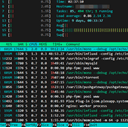
Web Console
Browser-based terminal access powered by ttyd
Web Console (ttyd) is a Terminal-over-HTTP service that delivers a browser-based shell using Xterm.js with CJK and IME support. In QuickBox Pro, it runs as a systemd service and is exposed through nginx under a user-scoped route.
It is not an SSH server or a multi-user shell manager; it provides a browser terminal session backed by the server’s bash shell.
Overview
Web Console provides an in-dashboard terminal experience for QuickBox administrators. The dashboard page embeds the console in an iframe, while nginx routes the user-scoped path to a localhost-only ttyd service.
This keeps the console reachable through the dashboard while the ttyd process itself stays bound to the loopback interface.
Key features
Web Console focuses on secure, user-scoped terminal access with minimal moving parts.
Browser Terminal
Terminal-over-HTTP experience backed by bash
Authenticated Route
nginx basic auth via /etc/htpasswd.d/htpasswd.username
Reverse Proxy
User-scoped route at /username.console proxied to localhost
Local Bind
ttyd binds to 127.0.0.1 on the default port 4200
When to use it
Use Web Console when you need a quick administrative shell without leaving the QuickBox dashboard.
Good fit
- You are logged in as an administrator in the dashboard
- You need a browser-based shell for quick maintenance or checks
- nginx is serving user-scoped routes like
/username.console - sshd is available on the server (required by the ttyd systemd unit)
What you get
- Admin-only console page embedded in the dashboard
- Local-only ttyd service bound to
127.0.0.1 - Reverse-proxied route protected with HTTP basic auth
- Service managed by
ttyd.serviceunder systemd
Enabling Web Console
Web Console is a built-in dashboard module — there is no package to install from the catalog. An administrator enables it with the built-in toggle, then opens the console in the browser.
Enable from the Dashboard
In App Dashboard → Package Management (/dashboard?mode=packages), Web Console shows as a built-in module with an Active / Off toggle rather than an Install button. Switch it on, then open the terminal at System → Web Console (/system/console). The module is admin-only — non-admin users do not see it and are redirected away from the console page. Toggling it on or off is recorded in the audit log.
Provision the ttyd console from the CLI (automation)
For automated provisioning, the CLI installs the standalone ttyd console — a per-user, reverse-proxied terminal served under /username.console (separate from the built-in dashboard module):
qb install webconsole -u username
qb reinstall webconsole -u username
qb update webconsole -u username
qb remove webconsole -u username
CLI Options
-u, --usernameRequiredTarget QuickBox username for Web Console operations
Full flag reference: CLI Reference.
Access and authentication
Web Console is accessed through a user-scoped route and protected with HTTP basic authentication.
URL / route
The console is available at the user-scoped path and is embedded in the dashboard console page.
Login / credentials / tokens
The nginx location uses HTTP basic auth and references a per-user htpasswd file at /etc/htpasswd.d/htpasswd.username.
Security notes
The systemd unit requires sshd.service and binds the ttyd process to localhost, ensuring access flows through nginx and its authentication layer.
Configuration and files
Web Console configuration is distributed across systemd and nginx, with a single ttyd binary installed system-wide.
Common tasks
These service-level tasks map directly to the systemd unit used by Web Console.
Typical workflows:
- Open System → Web Console to launch the embedded terminal (admin only).
- Use the direct route
/username.consoleif you need a standalone browser tab. - Confirm the active port in
/etc/systemd/system/ttyd.serviceif access fails. - Restart the
ttyd.serviceafter nginx or system updates.
FAQ
-p 4200 and binds to 127.0.0.1. You can confirm the live port in /etc/systemd/system/ttyd.service./etc/htpasswd.d/htpasswd.username for credentials.Requires=sshd.service and After=sshd.service, so ttyd will not start if sshd is down. It also needs the ttyd binary at /usr/local/bin/ttyd. Confirm sshd is running with systemctl status sshd.service, then run qb reinstall webconsole -u username to restore the binary and service file if the install is incomplete.systemctl status ttyd.service and restart it, then reload nginx with systemctl reload nginx. Confirm the route /username.console loads directly in a new tab and that /etc/nginx/software/webconsole.conf contains the console location.Best practices
Keep the Web Console predictable and secure with these habits.
Do
- Use the dashboard path System → Web Console for admin-only access.
- Verify the user route
/username.consoleis reachable through nginx. - Check
/etc/systemd/system/ttyd.servicewhen validating the bind address or port.
Don't
- Do not expose the ttyd port directly; keep it bound to
127.0.0.1. - Do not bypass nginx basic auth by modifying
/etc/nginx/software/webconsole.confmanually.
Troubleshooting
Web Console runs as a single ttyd.service systemd unit bound to 127.0.0.1:4200, reverse-proxied by nginx under /username.console. Start any diagnosis with the service status and journal:
systemctl status ttyd.service
journalctl -u ttyd.service -fThe dashboard embeds the console in an iframe pointed at /username.console. A blank frame means nginx is not routing the console path or the ttyd process is not up. Confirm /username.console loads directly in a new browser tab, that nginx has the Web Console location in /etc/nginx/software/webconsole.conf, and reload nginx:
systemctl reload nginx
systemctl restart ttyd.serviceThe unit declares Requires=sshd.service and After=sshd.service — if sshd is not running, ttyd will not start. It also needs the ttyd binary at /usr/local/bin/ttyd. Verify sshd is up, then reinstall to restore the binary and service file if needed:
systemctl status sshd.service
systemctl start sshd.service
qb reinstall webconsole -u usernameThe console route is protected by nginx HTTP Basic auth. Verify the htpasswd file exists at /etc/htpasswd.d/htpasswd.username and that nginx is reading it for the console route. A missing or mismatched htpasswd file causes the prompt to loop.
A refused connection or 502 means nginx is up but the ttyd process behind it is not listening. Ensure ttyd.service is active and bound to 127.0.0.1 with port 4200 in /etc/systemd/system/ttyd.service. Restart the service to recover:
systemctl restart ttyd.serviceWeb Console is admin-only. The dashboard console page redirects non-admin users to the home page, and the WebSocket handshake is rejected for non-admins. Sign in with an administrator account to open the console.
Resources
Join the Community
Media server operators sharing configs, getting support, and shaping the future of QuickBox Pro.